Cables & adapters
Find the right family, then define the connectors, performance and quantity for your project.
Find your connection
23 connection types
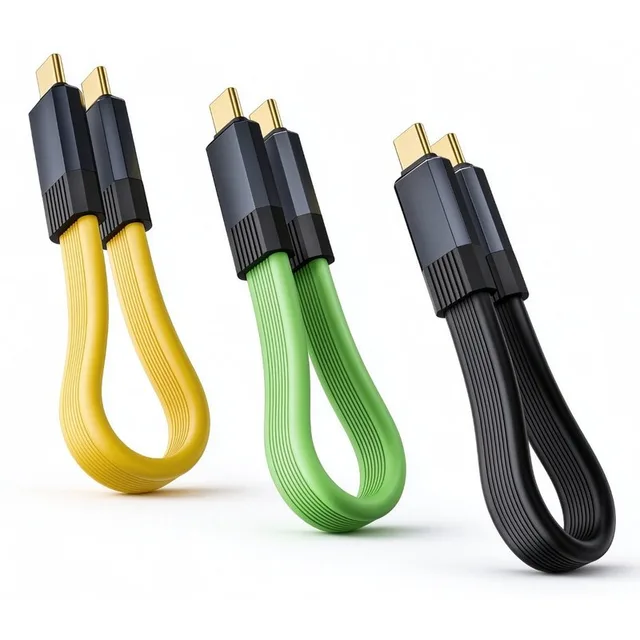
USB-C to USB-C cable
A reversible connection for USB-C equipment. Tell us whether you need charging, data transfer or video, so the cable can be matched to the task.
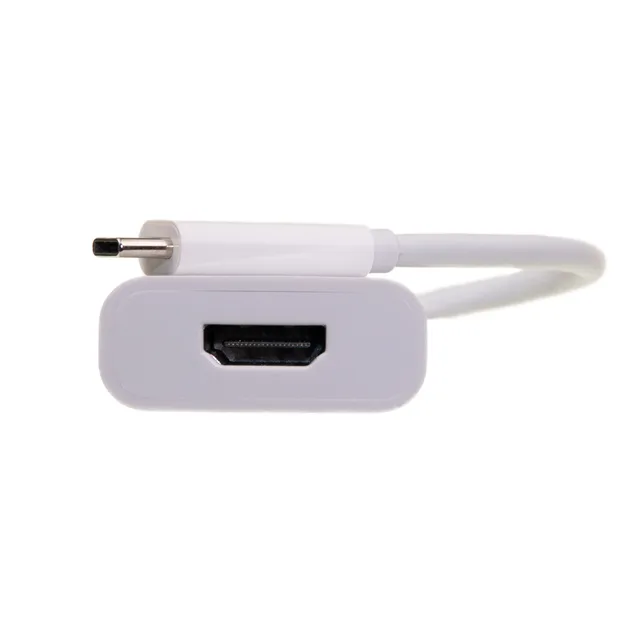
USB-C to HDMI adapter
Take a video signal from a compatible USB-C computer to an HDMI screen. The source port must support video output; a charging-only port cannot do this job.
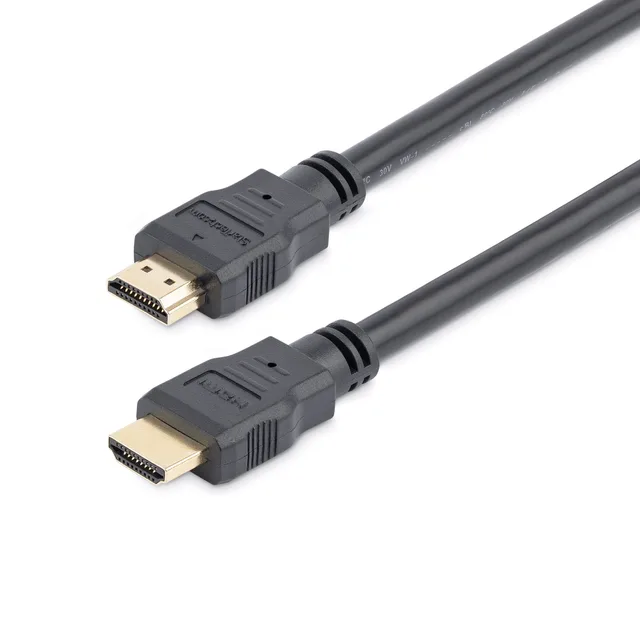
HDMI cable
Link an HDMI output to an HDMI input. Choose a cable around the complete display setup and installation distance rather than the connector name alone.
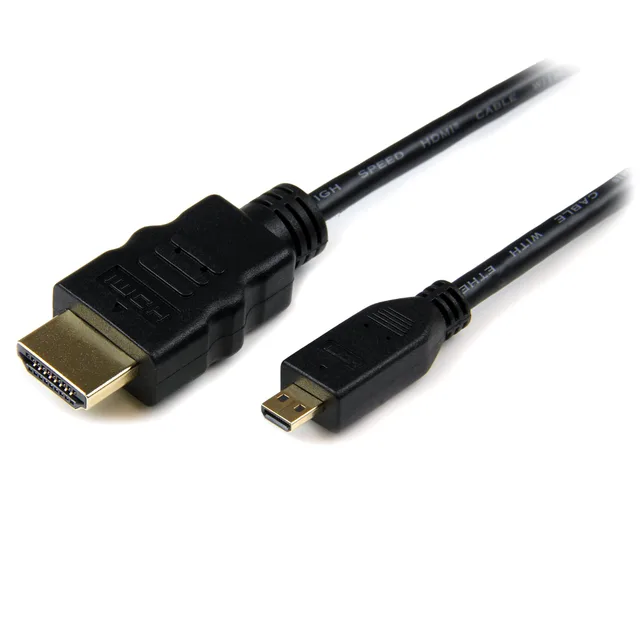
HDMI to Micro HDMI cable
Use the small Micro HDMI port on a camera or compact device with a full-size HDMI connection. Micro HDMI Type D and Mini HDMI Type C are different sizes.
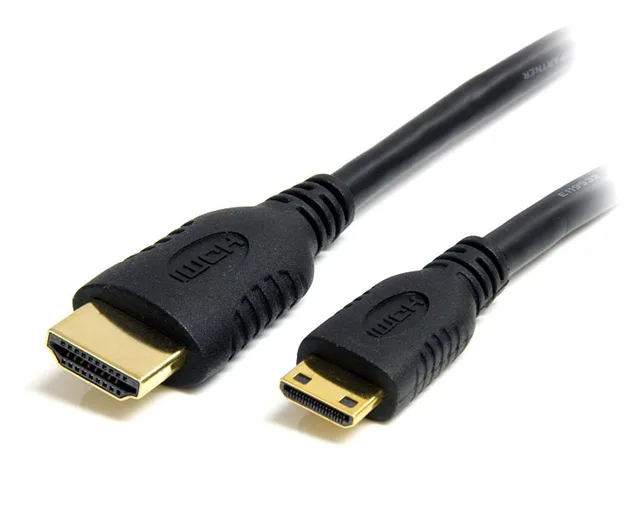
HDMI to Mini HDMI cable
Connect equipment with a Mini HDMI port to a standard HDMI connection. Match the smaller Type C plug and allow enough clearance around the device.
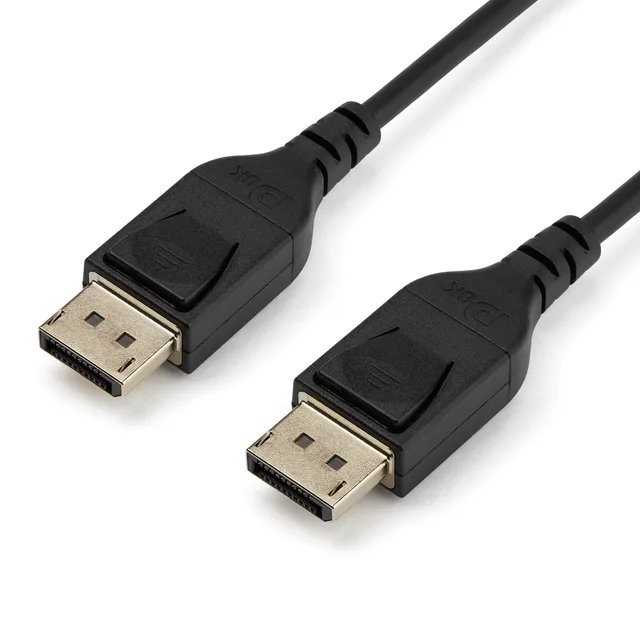
DisplayPort cable
Connect a DisplayPort source to a DisplayPort screen. The requested display format and cable route help determine the appropriate cable specification.
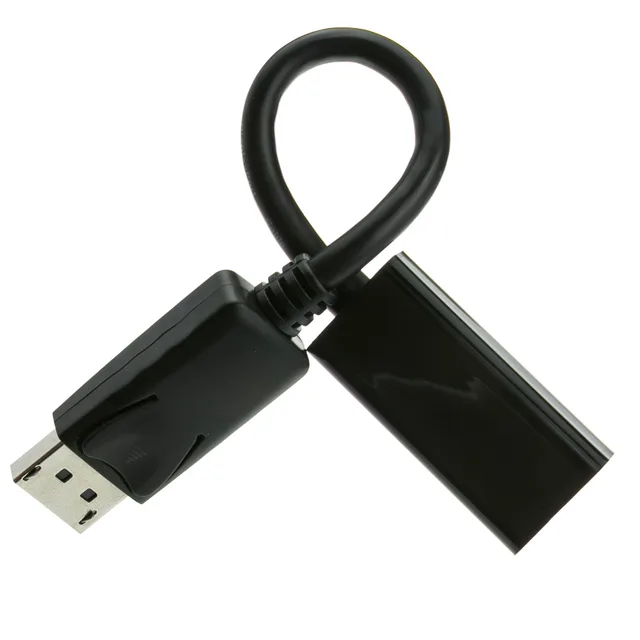
DisplayPort to HDMI adapter
Connect a DisplayPort video output to an HDMI display. Signal direction matters, and the complete setup determines whether an active adapter is needed.
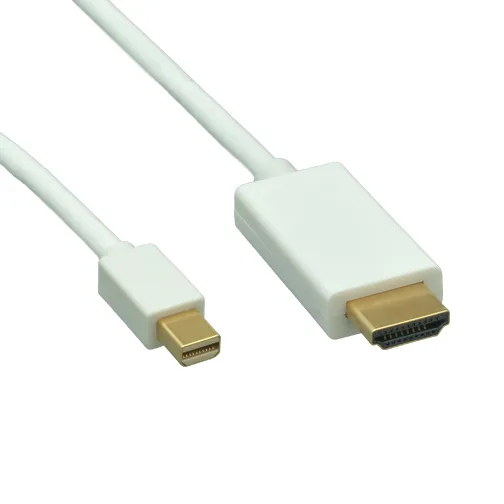
Mini DisplayPort to HDMI cable
Bring video from a Mini DisplayPort output to an HDMI screen. Confirm the source port and the picture format before choosing the cable.
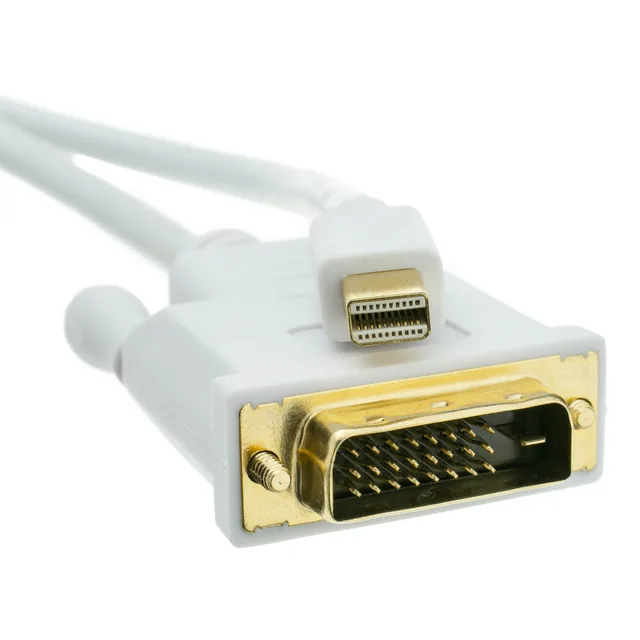
Mini DisplayPort to DVI cable
Connect a Mini DisplayPort video output to a DVI display. DVI connector layout and the required picture format must be considered together.
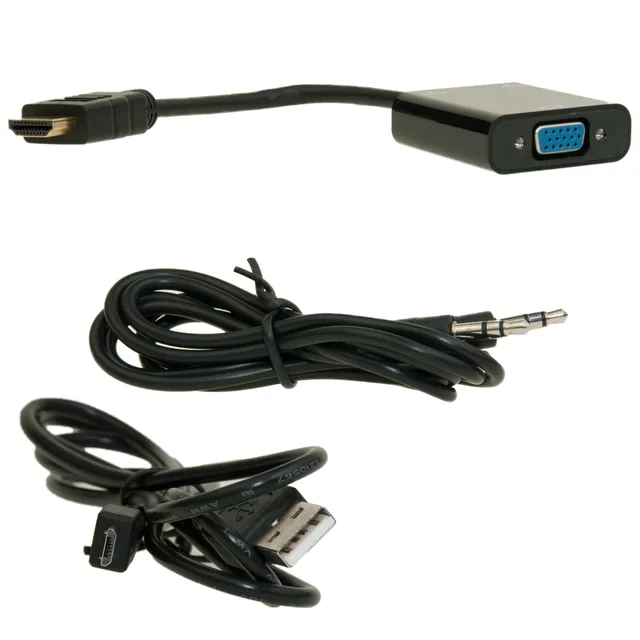
HDMI to VGA converter
Convert digital HDMI video for a VGA screen. This connection needs signal conversion, and power or separate audio may be part of the setup.
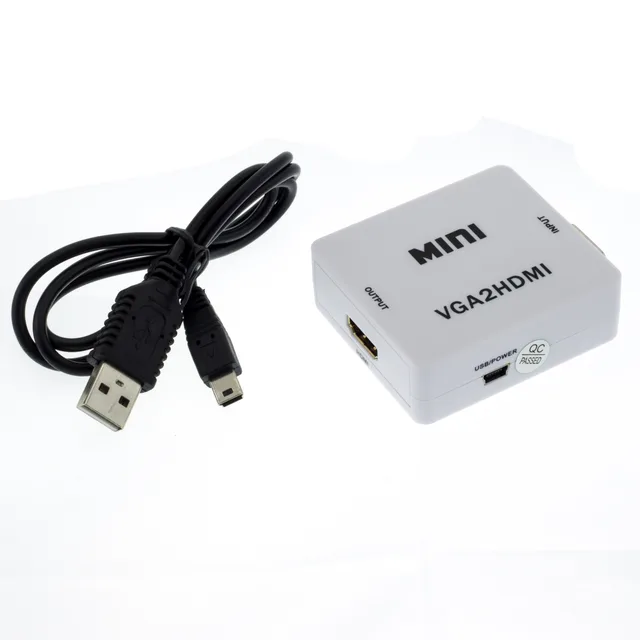
VGA to HDMI converter
Connect a VGA video source to an HDMI display through a converter. Explain the audio and power arrangement alongside the video requirement.
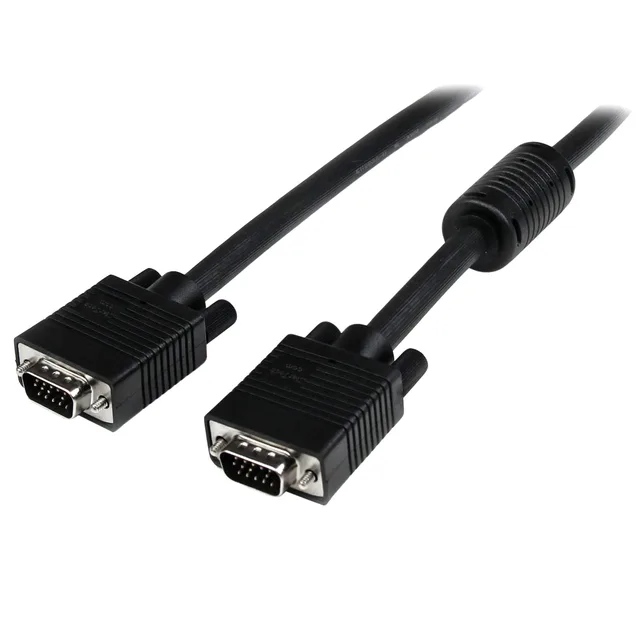
VGA cable
Link equipment with VGA video ports. The plug arrangement, installed distance and surrounding clearance are useful starting points for sourcing.
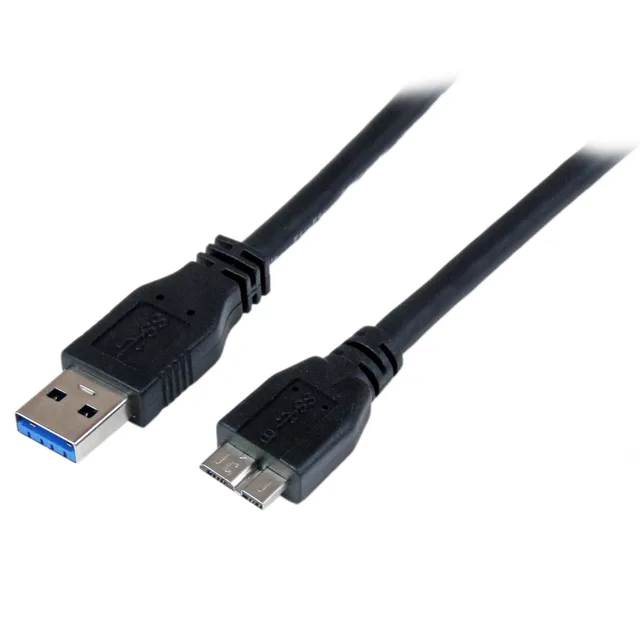
USB 3 Type-A to Micro-B cable
Connect a USB Type-A host to a device with the wide USB 3 Micro-B socket. Its two-part shape is different from the smaller USB 2 Micro-B connector.
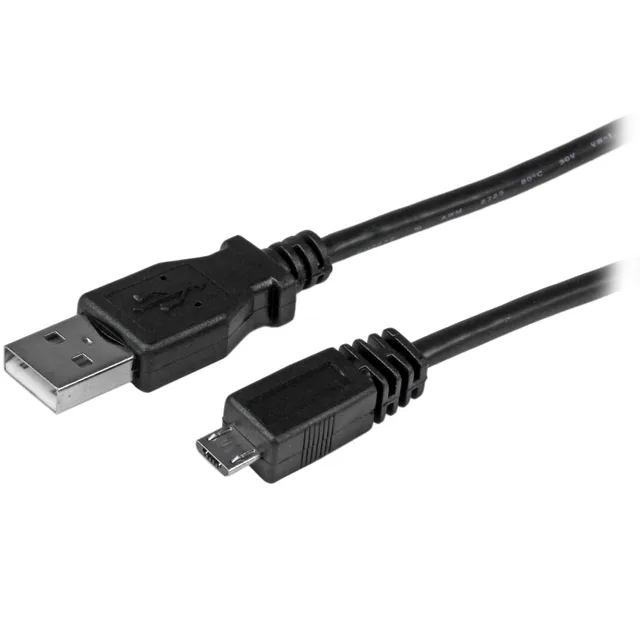
USB to Micro USB cable
Connect a USB Type-A host to equipment with a Micro USB socket. Tell us whether the application needs charging, data transfer or both.
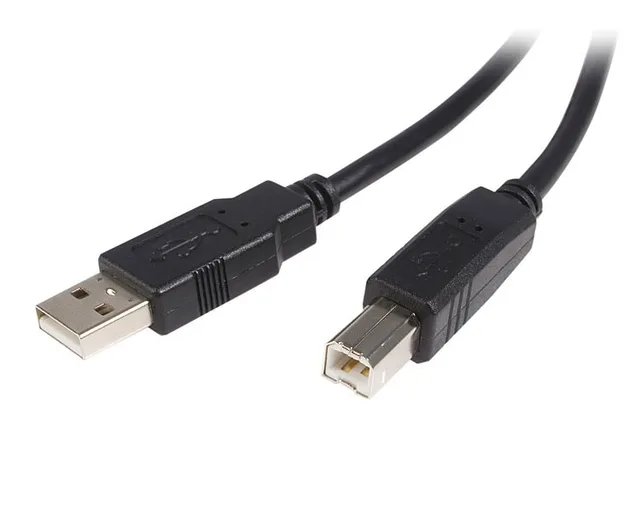
USB printer cable
Connect a USB Type-A computer port to a printer or peripheral with USB Type-B. A port photo helps distinguish this square connector from other USB versions.
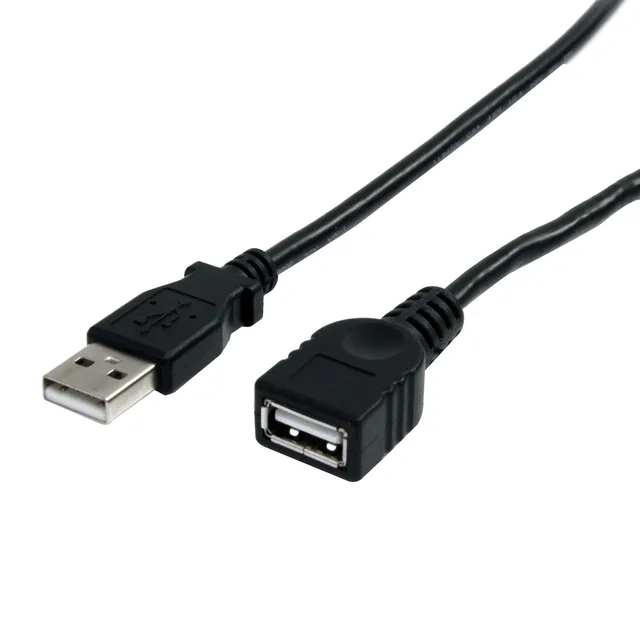
USB extension cable
Extend a USB Type-A connection with a plug-to-socket cable. Consider the full cable route and the connected device when deciding on length.
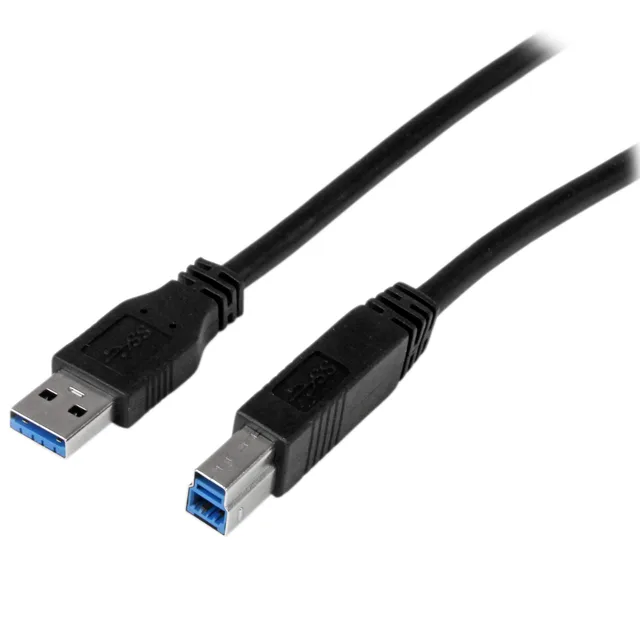
USB 3 printer and device cable
Connect a USB Type-A host to a USB 3 Type-B peripheral. The taller device connector is distinct from the USB 2 Type-B plug used by many printers.
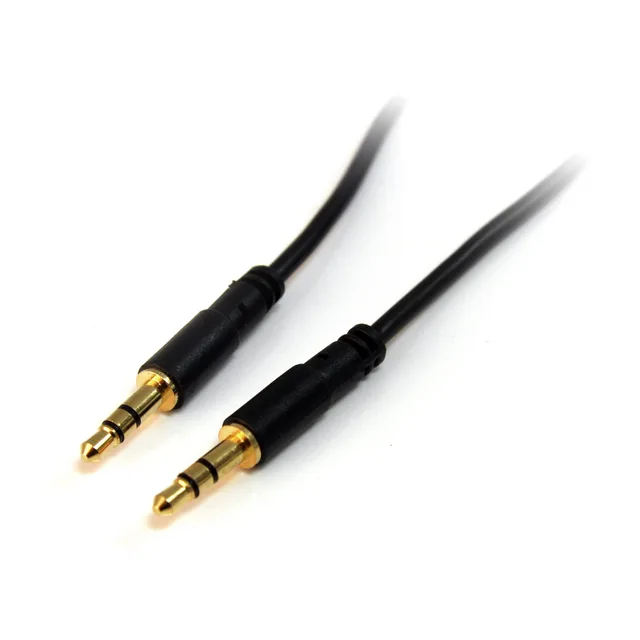
3.5 mm audio cable
Connect compatible analogue audio equipment using 3.5 mm plugs. Ring count, channel arrangement and microphone support depend on the exact connection.
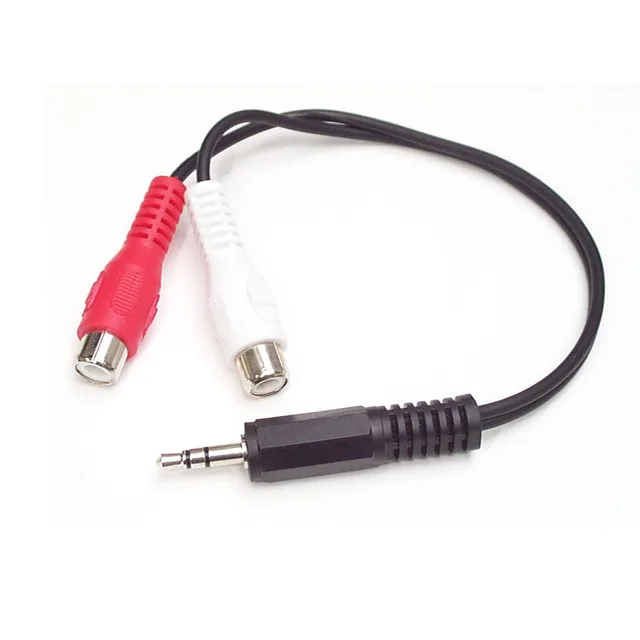
3.5 mm to RCA audio connection
Connect a 3.5 mm analogue audio port with RCA audio equipment. Specify the number of RCA channels and the plug or socket required at each end.
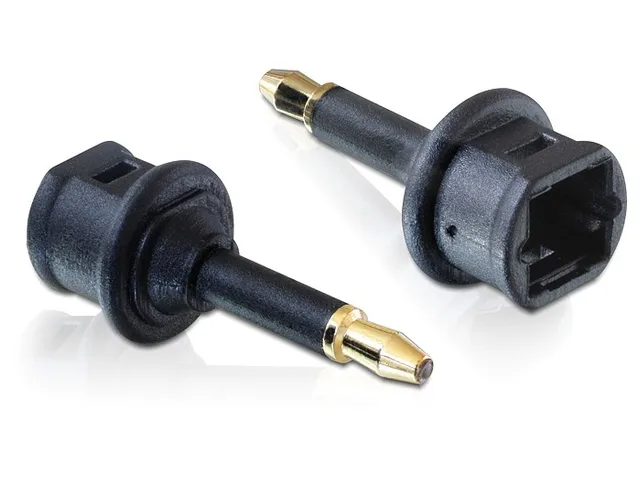
Toslink to Mini-Toslink adapter
Adapt an optical audio connection between Toslink and Mini-Toslink. A Mini-Toslink plug resembles a 3.5 mm audio plug but carries optical audio.
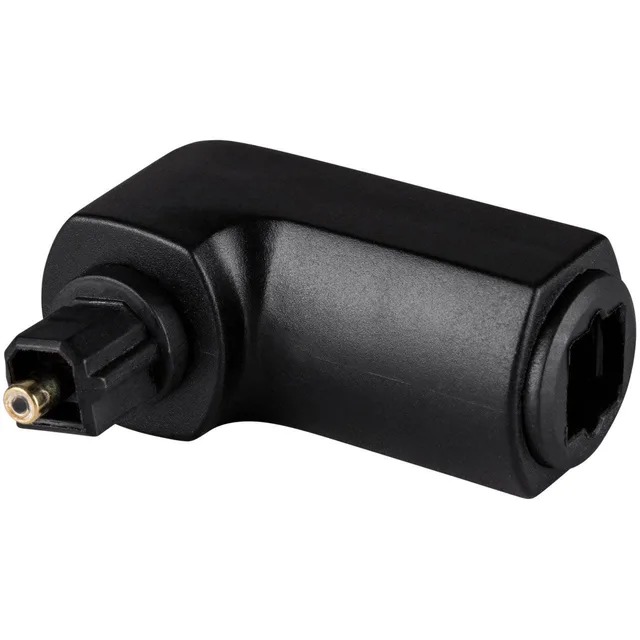
Right-angle Toslink adapter
Route a Toslink optical connection where space behind the equipment is limited. Describe the available clearance and the angle needed for the cable route.
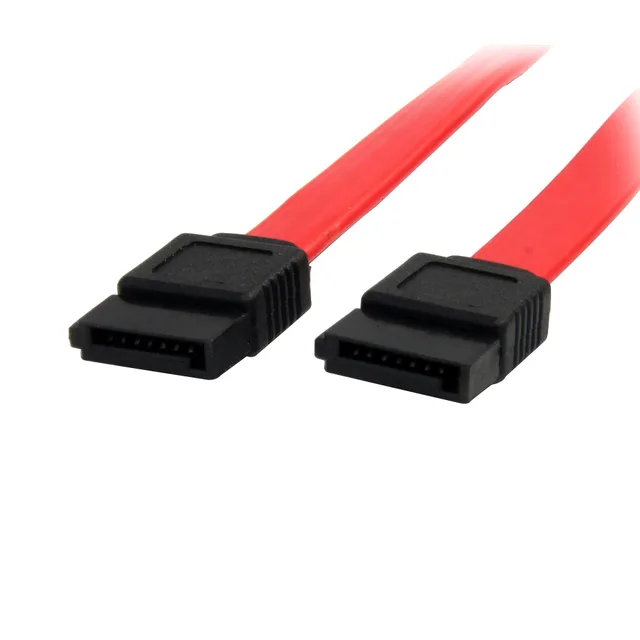
SATA data cable
Connect a SATA data port to a compatible storage drive. A data cable is separate from the power connection, so identify both needs in your request.
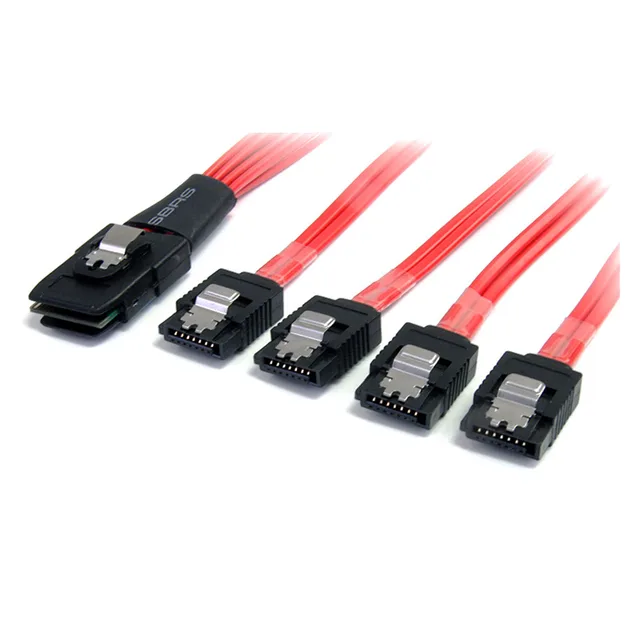
Mini SAS to SATA breakout cable
Break out a Mini SAS connection to SATA storage connections. The controller, connector standard and forward or reverse breakout direction must match the equipment.
No matching products. Try another connector or device.